
The Assistant, called Ask in the old docs, is the conversational layer over your road network. Type a question, or say it with the microphone, the way you would ask a colleague, and it comes back with the right chart, map and numbers and a short written explanation. When you need to share the result, it builds a PDF, Word or Excel file for you.
What you can ask
Anything you would otherwise look up across the rest of the platform, and more, because the Assistant can combine sources in a single answer. Its home page offers suggested questions to start from.
- Investigate: “Where was congestion worst yesterday evening?” “Why is Wagholi so slow right now?” “Which junctions had the longest waits this morning?”
- Compare: “Last week against this week in the city centre.” “Compare Swargate and Shivajinagar in the morning peak.”
- Rank and find: “The 20 slowest segments today.” “Corridors whose reliability got worse this month.”
- Diagnose patterns: “When does the city centre clear up on weekdays?” “Which days of the week are quietest on the airport road?”
- Summarise: “Give me a one-page summary of this week’s traffic, ready to send to my director.”
You don’t have to phrase things in a particular way. If the question can be answered with the data, the Assistant works out what to fetch and what to draw.
How answers come back
An answer is more than text. Depending on the question, the Assistant builds it from:
- Headline numbers at the top.
- Charts: bars, lines and distributions across the hours of the day, interactive when you hover.
- Maps: roads, corridors or areas in their real places, coloured by what you asked about.
- Tables and breakdowns, by road class, alert type or time of day, to read and compare.
- A short explanation of what the numbers mean and what to do about them.
The Assistant also shows the “Steps” it took to reach the answer; open them to check its work.
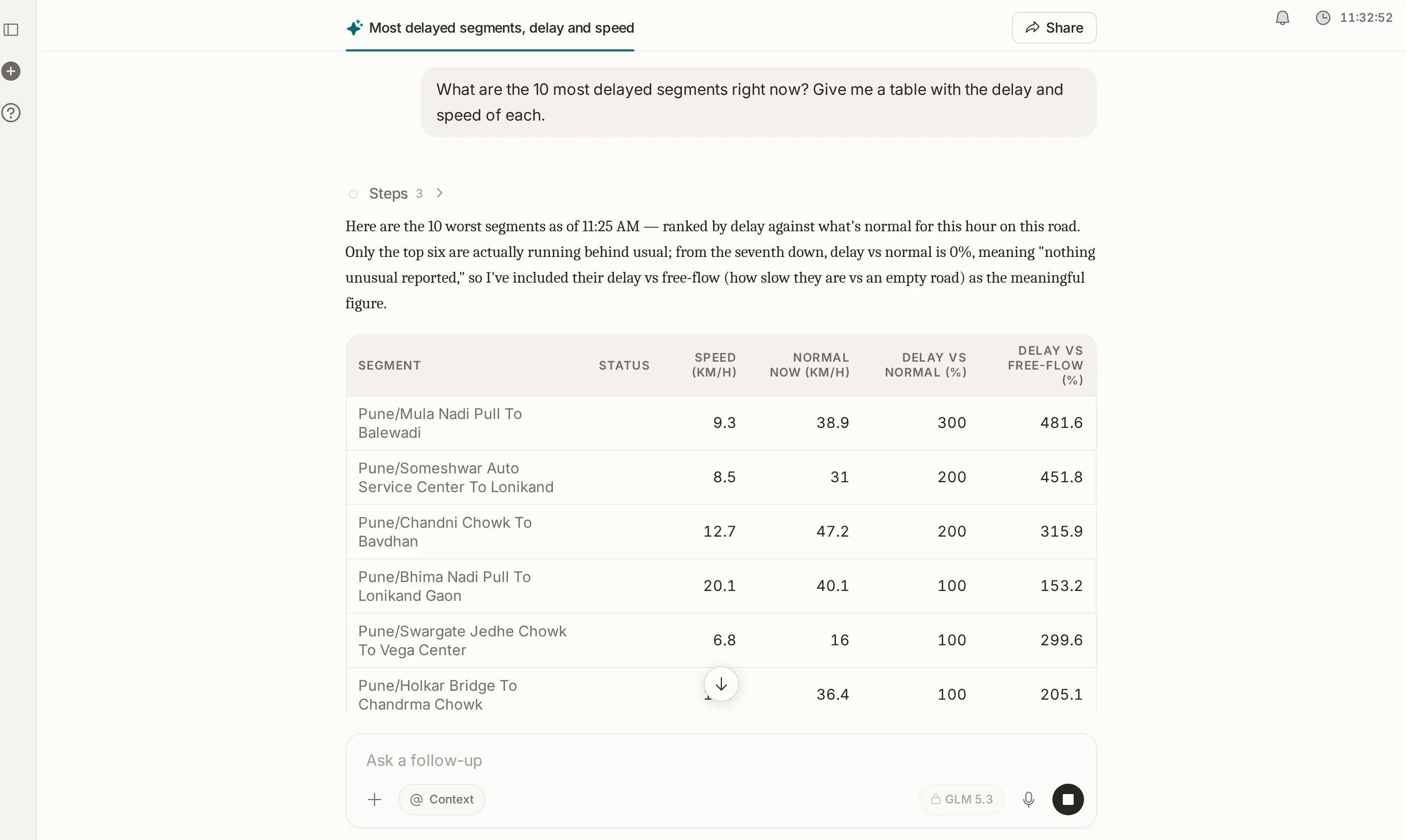
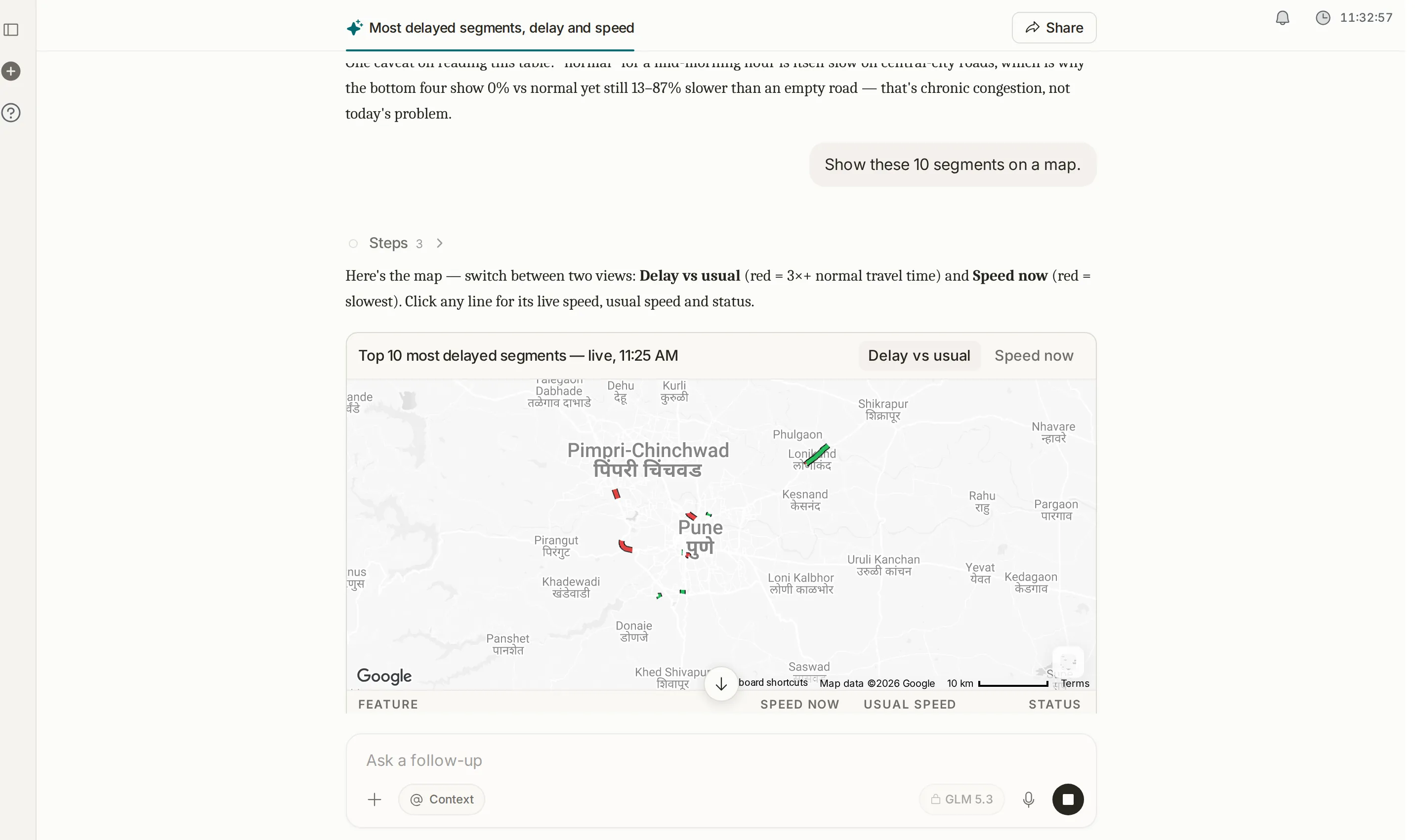
Files: upload and download
Upload: attach files with the “+” button in the message box. The Assistant accepts Excel, CSV, PDF and Word files, and you can attach several at once: last month’s report, a list of the corridors you care about, or anything else you want it to use alongside the live data.
Download: ask “give me this as a PDF”, “make a Word document” or “build an Excel file”, and the Assistant produces the whole file and shows it in the conversation, ready to preview and download.
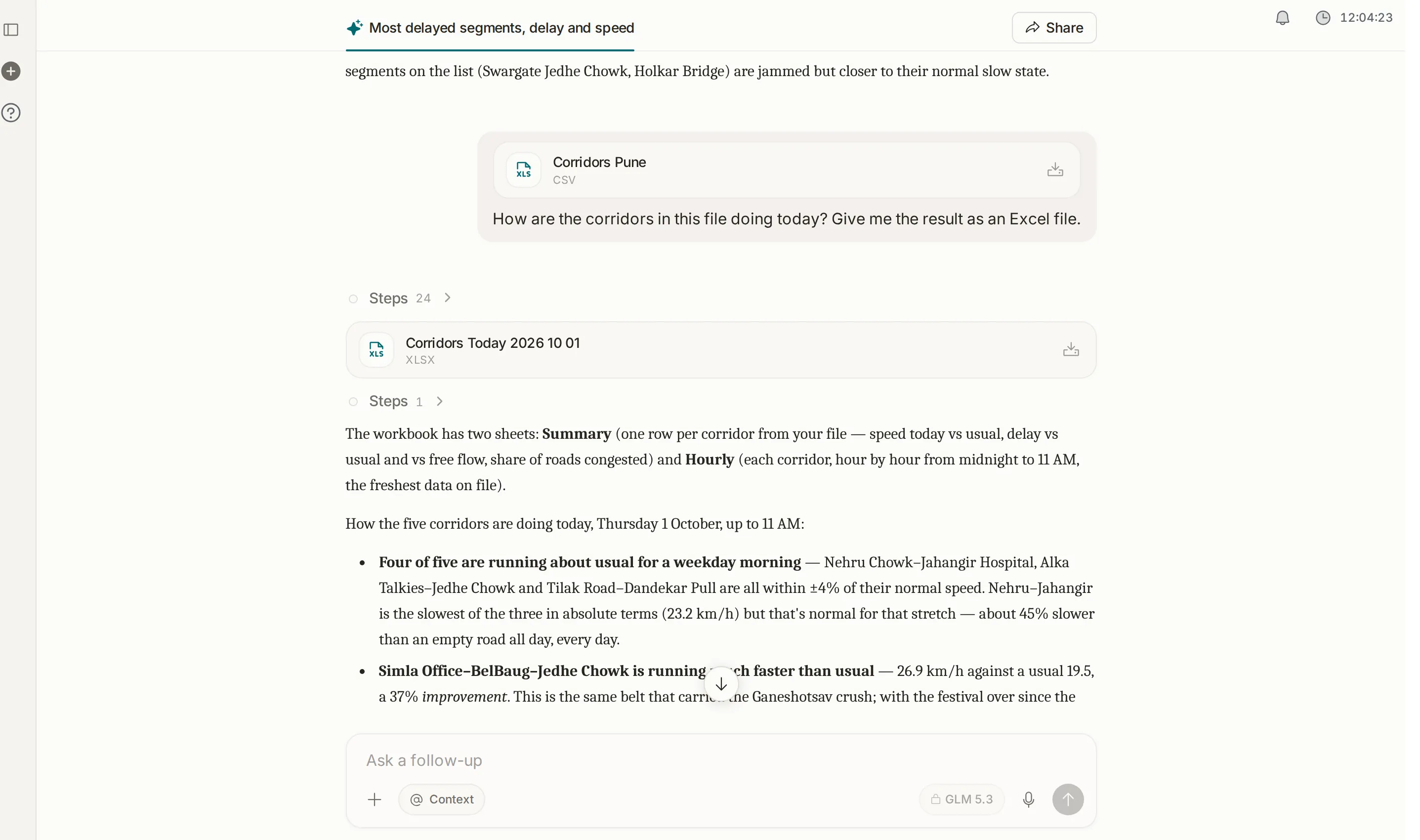
Building on an answer
Every answer is the start of the next question: “now split it by road class”, “same thing for last month”, “only corridors longer than 2 km”, “add a map”. The Assistant keeps the context of the conversation and builds on it instead of starting again. The “Context” button adds a specific corridor, segment, area or junction to your question.
Common workflows
- Morning check: “What was different about traffic yesterday compared with a normal Tuesday?” Read the chart, and follow up if something looks off.
- Handle a complaint: “Why is Balewadi slow today?” Get a map, a timeline, the active alerts and a written reason.
- Before and after: upload last month’s report, ask “compare these numbers with the last 30 days”, and download the result as a Word document.
- Brief management: “Give me a one-page summary of this week’s traffic with the most delayed corridors and the trend”, then download it as a PDF.
- Hand over to the team: share the thread with the “Share” button so an analyst can pick up where you left off.
Tips for asking well
- Name a place if you can: “Swargate” gets you there faster than “the main road in the centre”.
- Name a time if you can: “last Friday evening”, “yesterday’s morning peak”, “the last 7 days”.
- Build the question in steps: start broad, then narrow it: “the 20 most delayed corridors” → “only the arterial ones” → “compare today with last week”.
- Say what shape you want: “as a table”, “on a map”, “as a line chart”, “as a one-page PDF”.
Who it’s for
- Anyone on the team with a question who doesn’t want to learn five tools to answer it.
- Operations leads following the worst areas through the day.
- Analysts combining different slices of data into one brief.
- Decision-makers who want a clear PDF without asking someone to make it.
Related modules
The Assistant is the front door; the rest of the platform is where you go deeper. From any answer, go to Analytics for a corridor’s full timeline, Junctions for a junction’s approaches, Area Analysis for the spatial picture, or Alerts for what is live right now. To send the same briefing to your team regularly, see Reports.
The screen at a glance
Ask anything about your network in plain words. Hover a number to find it on the screen.
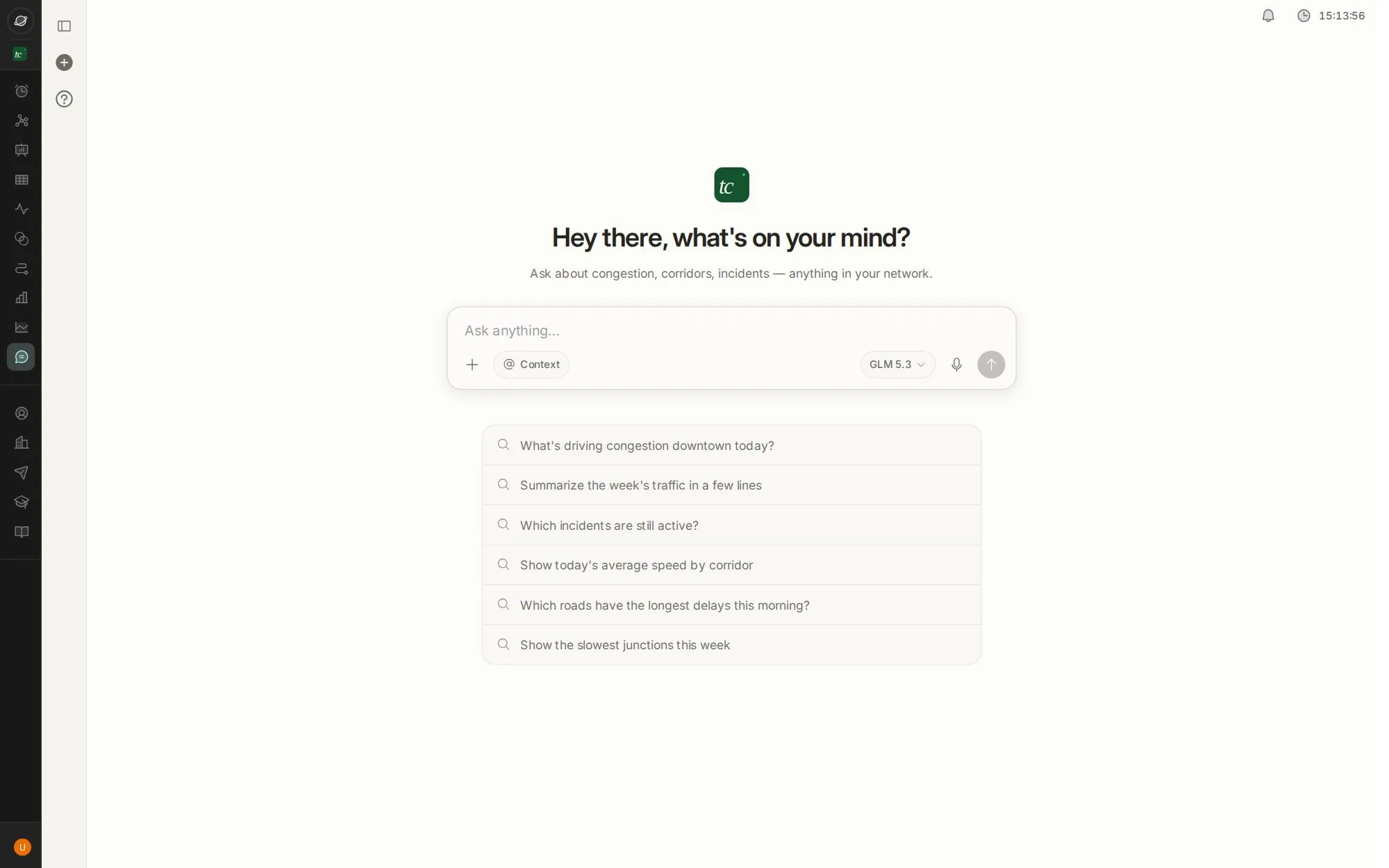
- 1Type or speak a question
- 2Attach Excel, CSV, PDF or Word files
- 3Add context: a corridor, segment, area or junction
- 4Suggested questions to start from
Step by step
Guides that walk you through this module in the live app, one click at a time.